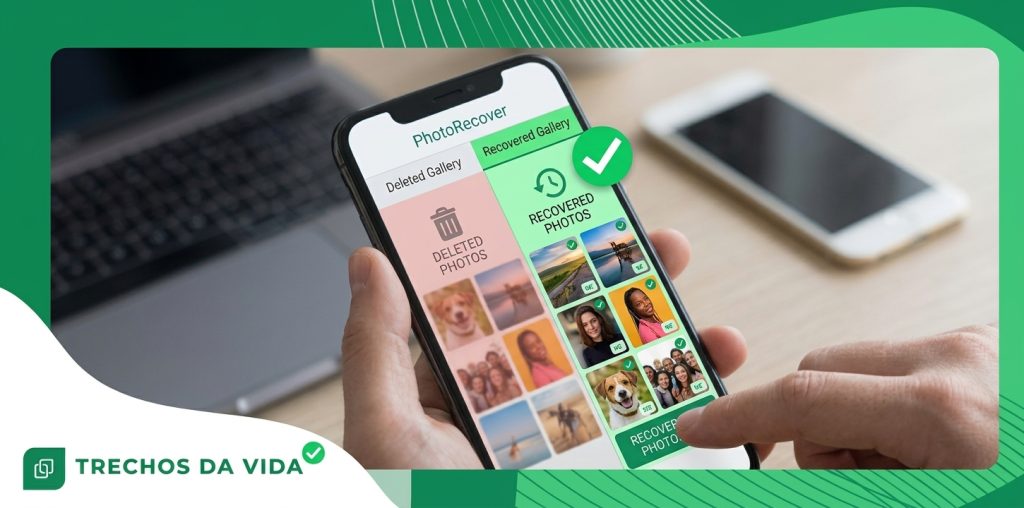
How to Recover Deleted Videos on Android and iPhone
Deleted a video by mistake? Take a breath. In many cases it can be restored, and the first minutes matter most.
Advertisements
Where Do Deleted Videos Go?
When you delete a video, your phone usually does not erase it on the spot. It moves the video to a trash or Recently Deleted folder, where it stays for about 30 to 60 days.
After that, the space is only marked as available. Think of a library that removes a book’s card from the catalog but leaves the book on the shelf. The data stays there until something new is saved in the same place. Large video files can be overwritten sooner, so speed matters even more.
Act quickly. The longer you keep using your phone, the higher the chance that new data takes the place of what you want back.
Common Reasons Videos Go Missing
- Accidental deletion: a wrong swipe or a clean-up that went too far.
- Storage clean-ups: videos take a lot of space, so they are often the first thing people remove.
- System updates: a problem during an Android or iOS update can make items vanish.
- Switching phones: some videos are left behind during the move.
- Memory card trouble: SD cards can fail with age or if they are removed the wrong way.
Five Places to Check First
Before trying anything else, look in these places. Most of the time the answer is in one of them.
- Recently Deleted (iPhone): open the Photos app and look for the album with this name.
- Trash or Bin (Android): open your gallery and look in the menu.
- Cloud backup trash: the photo and video backup service you use keeps its own trash.
- Other devices: a second phone or a tablet signed in to the same account.
- Where you sent it: messages or email, where a copy of the video may still be.
How to Restore a Video From the Trash or Backup
Follow these steps in order. Your cloud service, Google Photos on Android or iCloud on iPhone, may also keep a copy.
- Open the trash or the Recently Deleted album.
- Select the video you want back.
- Tap Restore.
- Check your gallery to confirm it is back.
When a Recovery App Makes Sense
If the video is not in the trash or in a backup, a recovery app can scan the storage of your phone for items that were marked as available but have not been overwritten yet. Results depend on the time since deletion and on how the phone was used afterwards.
Look for an app that shows a preview before restoring, works with your version of Android or iOS, and asks only for permissions that make sense. Download only from Google Play or the App Store.
Recovery Step by Step
- Install carefully. Use only the official store of your phone.
- Allow access. Follow the prompts so the app can scan your storage.
- Pick a scan depth. A quick scan usually finds recent deletions. A deep scan goes further but takes longer.
- Preview before restoring. Select only the videos you need.
- Save somewhere else. Never restore an item to the place it was deleted from.
Three Mistakes to Avoid
- Using the phone as usual. Each new photo, message or app can overwrite the data you want to save.
- Downloading from unofficial sources. Third-party sites are a common way to pick up malware.
- Restoring to the same spot. This can overwrite the item you just rescued.
How to Protect Your Videos From Now On
Turn on automatic backup with Google Photos on Android or iCloud on iPhone so each new item is saved as soon as it is created. Keep some storage space available on your phone, keep the system updated, and check your backup from time to time. A good backup habit gives you peace of mind far beyond any recovery tool.
Frequently Asked Questions
Ready to Try Recovering Your Videos?
Choose the option for your phone and run a scan.
Recovery app for AndroidRecovery app for iPhoneDisclaimer: the success of video recovery depends on several factors, including the time since deletion, your account settings and how the device was used afterwards. Results are not guaranteed. Always check the information on the official store page of the app.